
She Learns About Your Business, Then Gets On With It.
Tell Cleo about your business once and then connect Google. From then on she works on your site every week, writing, fixing and watching where you are found, and brings you anything that needs a decision.
Four Things To Do First. Then She Takes Over.
Most software wants configuring. Cleo wants briefing, and she reads most of the brief from your own website.
Let Cleo Fill In Your Knowledgebase
She reads your website and drafts what you do, your services, the places you cover, and how you sound. You double check it, and correct anything she got wrong.

Connect Search Console And Analytics
The only two accounts you connect are Google. This allows Cleo to see what people search for, where you appear, and what visitors do on your website once they arrive.

See What Cleo Found
She checks every page for what is broken or missing, and tells you which of it she can fix. She can then fix it, from broken links to redirect hops and, with your approval, the words on your pages.

Plan A Month Of Articles
Cleo suggests articles from what people search for. You can monitor her suggestions, or let her research and write on a schedule, with each article saved as a draft or published on the day.

A Normal Week With Cleo.
Nothing dramatic. That's rather the point.
Monday
Two articles go out, planned weeks ahead on the calendar. A page that dropped out of Google over the weekend is back in, and Cleo has left a note explaining what she did.
Tuesday
She spots a broken link on your contact page because a supplier changed their web address. The fix is ready and waiting. You approve it with one click.
Wednesday
All is eerily silent. That's great news because Cleo only gets in touch when something needs your attention.
Thursday
A search where you sit eleventh gets flagged, with the page that could reach the first page. You say yes, see the before and after, and she makes the change.
Friday
Your monthly report arrives in your inbox, branded with your own logo. What changed, what Cleo fixed, and where you are being found.
The Weekend
Have it off. Cleo has it covered and she doesn't ask for overtime.
You Decide How Much Work She Does Automatically.
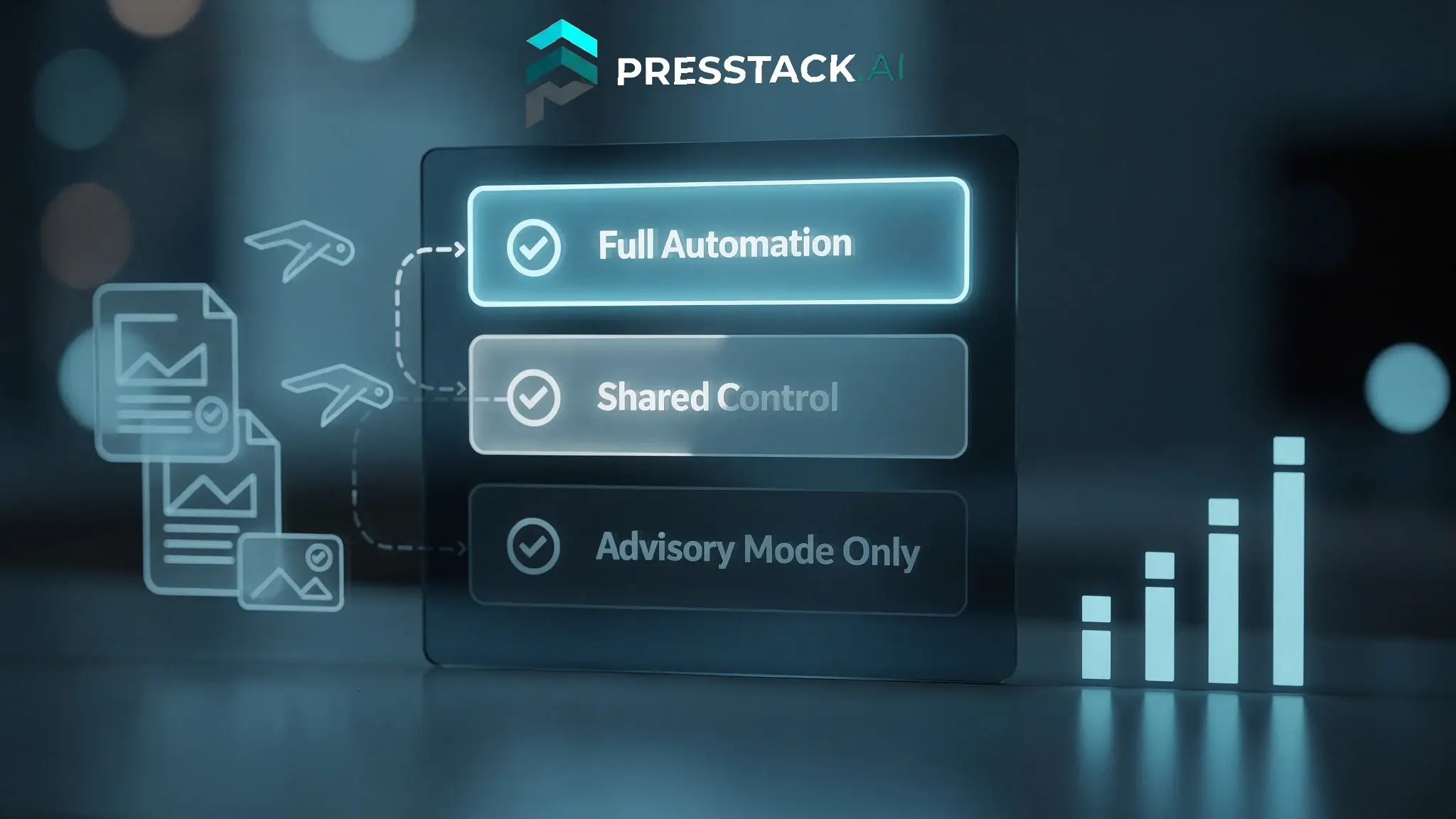
Your pages and products are never changed without your approval. For the work behind the scenes, meaning Cleo's fixes, your Google meta, and upkeep on your blog posts, you choose whether she asks first or just gets on with it. Change any of these settings at any time.
-
Automatic
She does it and tells you what she did. Good for the jobs you'd rather never think about, like image descriptions and broken links.
-
Ask Me
She lines up each change and waits for a yes or a no. One click and it is done. Everything starts here.
-
Always Ask
Your pages and products. Cleo suggests, you approve, and you see the before and after first. This one can't be switched off t oensure nothing changes.
-
Pause Everything
One button stops all background work, for a launch, a handover or a holiday.
Nothing She Does Is Hidden.
Anyone doing real work gets something wrong now and then. What matters is that you can see it, put it back, and that it does not happen twice.

Everything Is In Her History
Every change is listed with the date, the page and who made it, marked By Cleo or with the first name of the person on your team. Was it you, CLeo, or a member of your team?
See How History Works

You Can Put It Back
Changes to pages, posts, products and images go back with one click for 30 days,including anything done automatically. Settings, redirects and categories are listed in Cleo's history but can't be put back.

You Only Tell Her Once
Tell Cleo to drop a suggestion and she will never make it again. Add a word to your banned list and it disappears from content she writes. The more you correct her, the more she writes like you.

What's Cleo's Workflow?
-
She reads your site and tells you what is wrong with it.
Broken links, missing descriptions, pages that have dropped out of Google, pages too thin to be worth having. That list costs nothing, and you are under no obligation to act on any of it.
The writing depends on what she knows about the business. Press 'Let Cleo Fill It In' and she drafts your knowledgebase from your own pages. Add how the business talks and a few real jobs you have done, and the difference in what she writes is obvious.
-
No. That is pretty much the point.
Anything needing a decision appears on your dashboard, and by email if you want it. If nothing needs you, you won't hear anything. No weekly summary of things that didn't happen, and no message to say a check ran and found nothing.
-
Put it back.
Everything she does is listed in her history with the date, the page and who did it. Changes to pages, posts, products and images go back with one click for 30 days, including anything done automatically. Settings, redirects and categories are listed too, but can't be put back.
Then tell her she got it wrong. Corrections are remembered, so the same mistake shouldn't arrive twice. If she keeps suggesting something you don't want, tell her to drop it for good, or add the words she must never use to your banned list.
-
Yes, and that's the usual case.
She reads what's there rather than needing it structured a particular way. It doesn't matter whether the site was built in Elementor, Gutenberg, Divi or something a developer wrote by hand five years ago and left.
Sites already running Yoast, Rank Math or All in One SEO are the easiest, because she brings the existing titles, descriptions and settings across rather than starting from nothing.
The only sites that take longer are ones with no structure at all. No headings, no page hierarchy, everything in one long page. She'll still work, but there's less for her to read.
-
Then use part of it.
Every area is set on its own. Plenty of people run her for repairs and site health, keep an eye on the rankings, and write every word themselves. Others let her write and never touch the technical side. Both are normal.
Nothing is bundled in a way that forces you to accept a feature you don't want, and turning an area off doesn't affect anything else.
-
That's what most people do.
Each site has its own subscription, so putting it on one client site tells you nothing about your bill for the others. Pick the one you've been meaning to get to, see what she finds, and decide from there. There's nothing to uninstall from the rest of your sites if you decide against it, because you never installed it on them.
-
Yes. Not because we expect trouble, but because you should have a backup before any plugin goes on a site, and this one writes to the database.
Cleo's own undo covers everything she does, entry by entry, with the date. But an undo log is not a backup. It won't help if something unrelated goes wrong the same week, and it won't help if you decide three months later that you want the site exactly as it was in January.
If you look after client sites you almost certainly have this running already. If you don't, most hosts include daily backups, and there are plugins that do it for a few pounds a month. Take one before you install, and keep taking them afterwards. That advice is the same for us as for anything else you put on a site you can't afford to break.
Start With The Site You've Been Kicking The Can Down The Road On.
The one where you know there's work to do. She'll read it and tell you what's wrong. That part costs nothing and commits you to nothing.