
Images Are The SEO Work That Never Gets Done.
A media library that writes its own descriptions, finds the files slowing your site down, and searches your own library before making anything new.
Four Thousand Images. Nobody Has Ever Described Them.
Every site that has been running for more than a year has the same problem. Hundreds of images uploaded in a hurry, file names left as they came off the camera, and description fields left blank.
-
The Library Itself
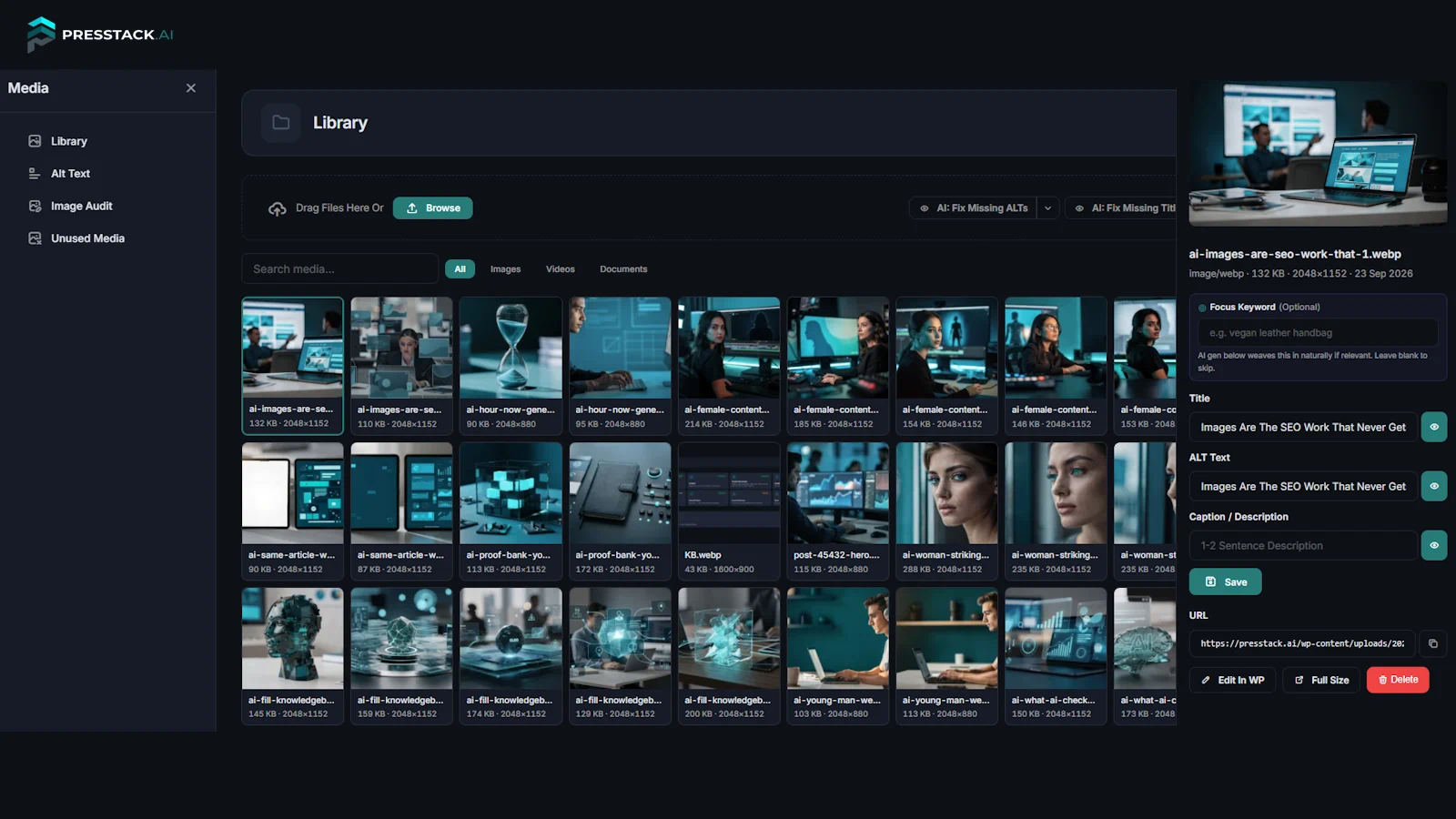
A media screen that shows file size and pixel dimensions on every tile. Drag files in or browse your folders, search by name, and filter to images, video or documents. Each file has a panel with its title, alt text, caption and address, and a link to edit it in WordPress. Everything is saved in the standard WordPress fields, so if you remove the plugin, nothing is lost.
-
Descriptions And Titles Across The Library
Cleo writes alt text for every image that has none, and titles for images whose title is empty or still the file name. Existing descriptions are left alone. Add an optional focus keyword and she works it in where it fits what's in the picture. Describing images costs no credits.
-
Heavy Images Found And Shrunk
The daily check flags images over 500 KB, with their size and dimensions. Shrinking brings anything over 2560 pixels down to that size and re-encodes it. The original is kept first, so Cleo can put it back exactly as it was.
-
Unused Files Found And Put Somewhere Safe
Cleo checks featured images, page content, Elementor and other page builder layouts, and shop galleries to find files that nothing uses. A photo used only inside an Elementor section is not reported as unused. Deleted files go to a bin you can restore from.
Upload, Search, Describe, Audit. All In One Place.
Presstacxk media library on a real site, with one image selected. Hover a marker to see what each part does.
Fill Every Missing Description
One button works through the whole library, a batch at a time. Cleo writes alt text for every image without one, and does the same for missing titles. Or handle a single image from its own panel.
Four Different Areas
Library, descriptions, the oversized image audit, and unused files. All four sit in the left navigation, so you go straight to the one you need. Your full image stack is here, not buried in a settings page.
Upload and Search
Drag files in or browse your folders. Search by name. Filter to images, videos or documents. It is a working library built into WordPress, not a report about one.
What Cleo Wrote
A description of what's in the picture, not a restatement of the file name. It sits alongside the title and caption, and you can edit any of them before saving.
A Focus Keyword
Optional. Give Cleo a phrase and she works it in where it fits the image naturally. Leave it blank and she describes what she sees, which is usually the right call.
Size and Dimensions
File size and pixel dimensions appear on every tile. You can see which files are heavy at a glance, without opening anything.
WordPress Native
Edit in WordPress, open the full size file, or copy the address. Everything is saved in the standard WordPress attachment fields. Nothing is locked in, and nothing breaks if you remove the plugin.
What Image SEO Looks Like Without Cleo
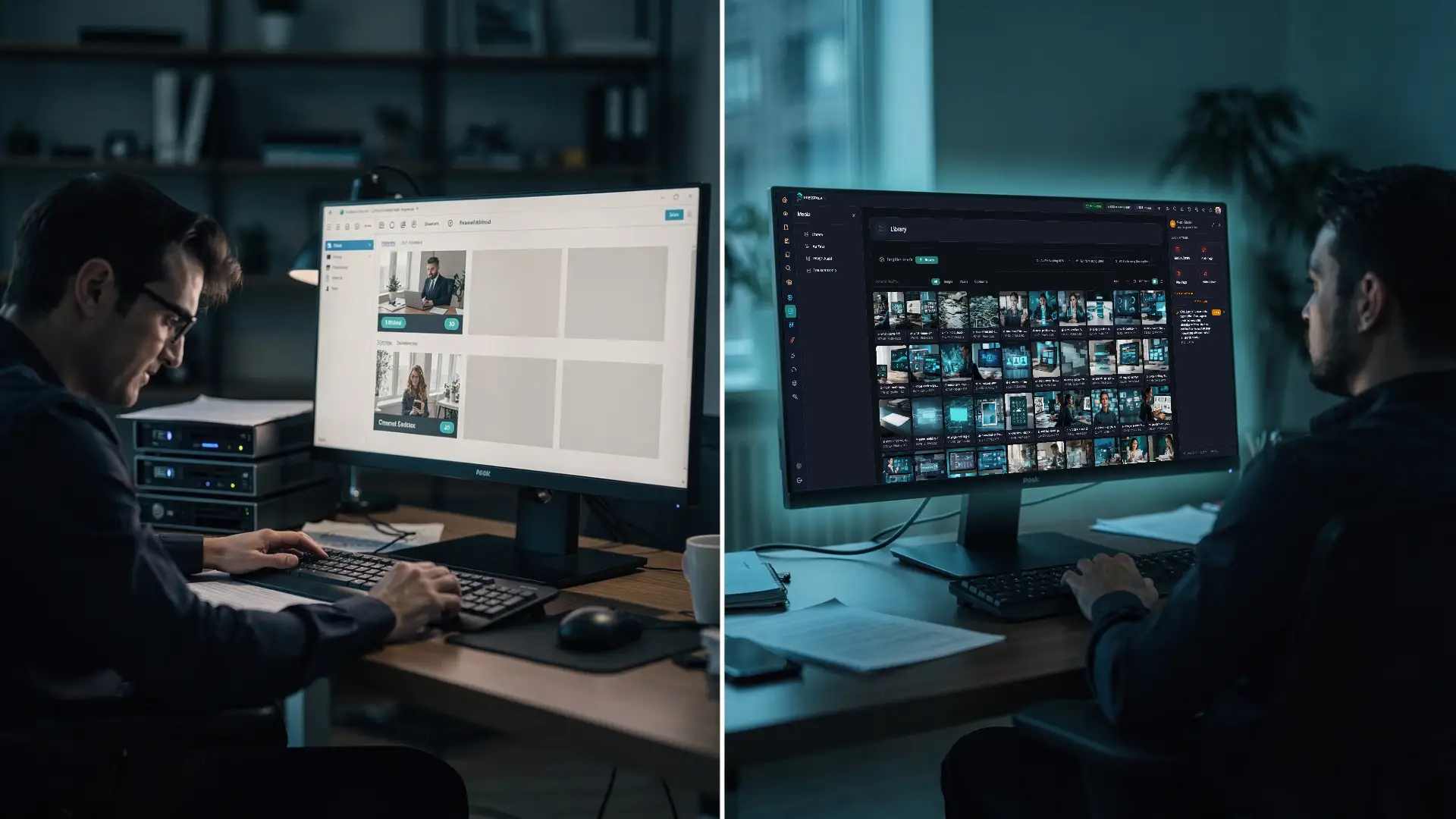
Every item in this list is work that gets skipped, not because site owners do not care, but because there is no tool that handles all of it in one place. Presstack changes that.
-
The Library Screen
The WordPress media screen shows files in a grid with no size or dimensions. You open each file to check its weight. With Presstack, size and dimensions sit on every tile, and one click filters to images, video or documents.
-
Writing Descriptions
Describing images means opening each one, typing into the alt text field and saving it. On four hundred files that is hours of repetitive work that never gets done. With Presstack, Cleo fills every blank in the library, at no cost in credits, and leaves existing descriptions alone.
-
Finding Heavy Files
Finding heavy images usually means running a speed tool, working out which files are the problem, resizing them in an image editor and uploading them again. With Presstack, the daily check lists every image over 500 KB, and Cleo shrinks the ones you choose, keeping the originals.
-
Clearing Unused Media
Done by hand, finding unused files is genuinely hard. A file might be used inside a page-builder layout rather than the page content, and deleting it breaks a live page. Cleo reads featured images, page content and page-builder layouts before calling anything unused.
How Presstack Handles Your Images, From First Upload To Final Audit.

Finding And Fixing Problems
Oversized pictures are one of the checks the site audit runs. See what else it covers.
Site Health
Writing And Content
Articles need pictures. She searches your library before offering to generate anything new.
Writing
Getting Found On Google
Image search is its own search channel. A described picture is how you appear in it.
Getting Found
Online Shops
A product with no picture barely sells. She flags which of yours are missing one.
Shops
Find Out How Many Of Your Images Are Missing Their Description.
Install Presstack on one site and open the library. The number of images with nothing written against them is almost always higher than you'd expect.